USB-C XR Charging Adapter Ultra
USB-C XR Charging Adapter Ultra
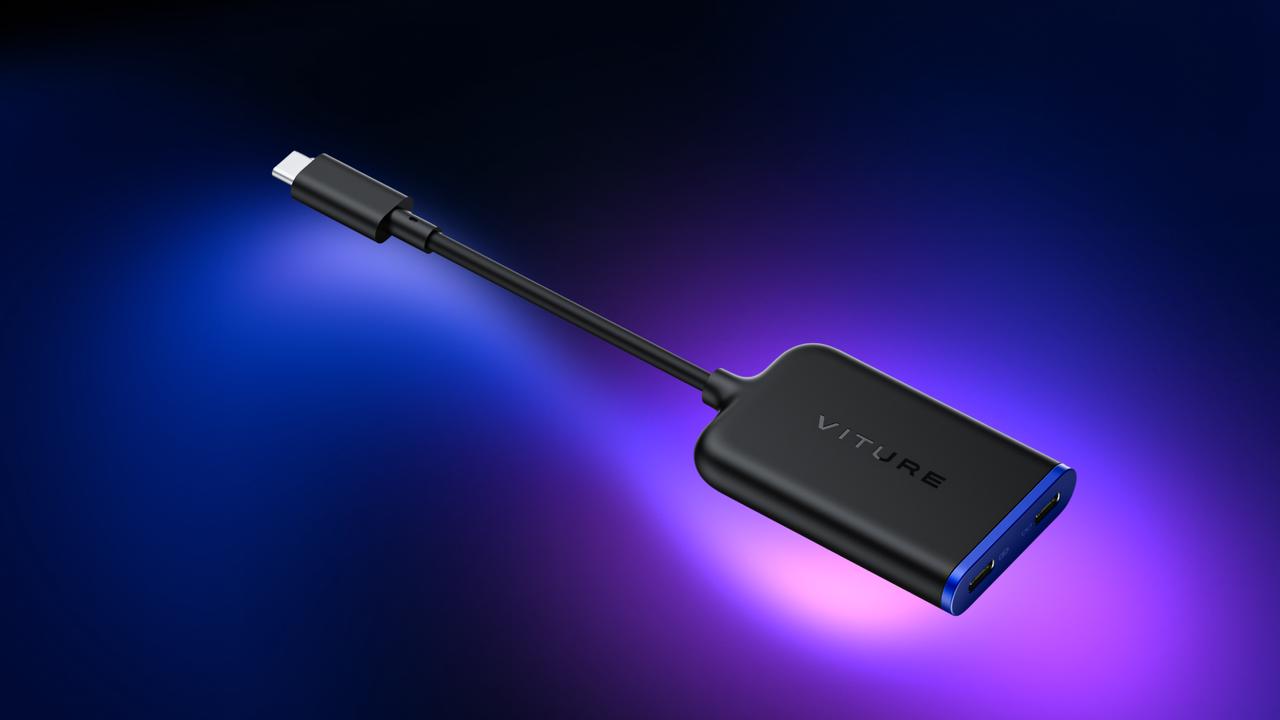
Now compatible with all VITURE XR Glasses, including Luma Ultra and The Beast, the Adapter Ultra delivers the advanced SpaceWalker experience on iOS: multi-screen, 3DoF head-tracking, 1-click 3D, spatial video, and VR video. The first VITURE adapter with full Nintendo Switch 2 support, plus Steam Deck, ROG Ally, and other USB-C handhelds. Up to 65W PD passthrough charging — and unlocks ROG Ally Turbo Mode.
One adapter. The whole VITURE ecosystem. Play without limits.
Important: iPhone 16e and iPhone Air are not compatible with VITURE XR Glasses.
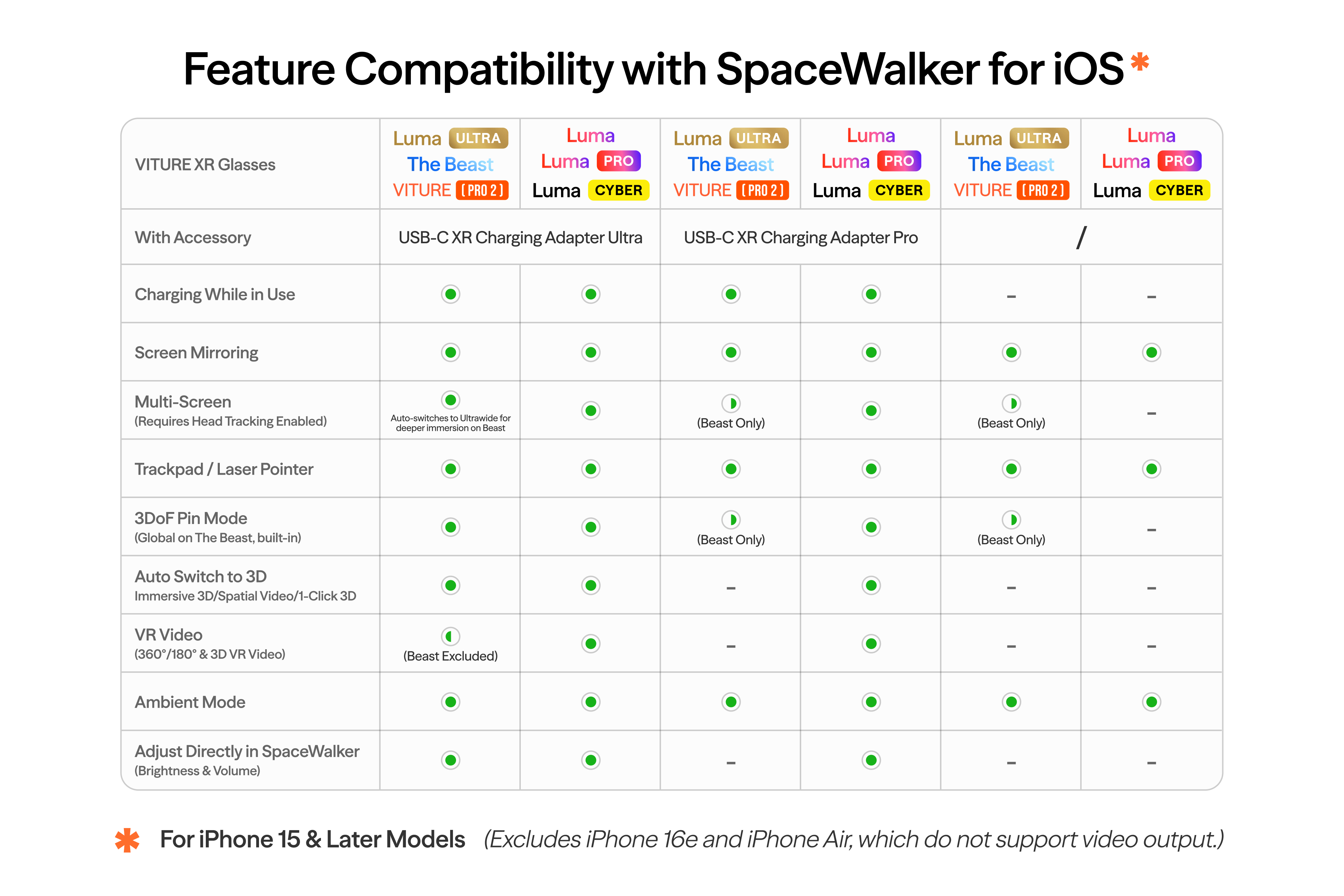
To compare adapter capabilities, see the feature comparison of adapters
Recommended Articles
Key Features
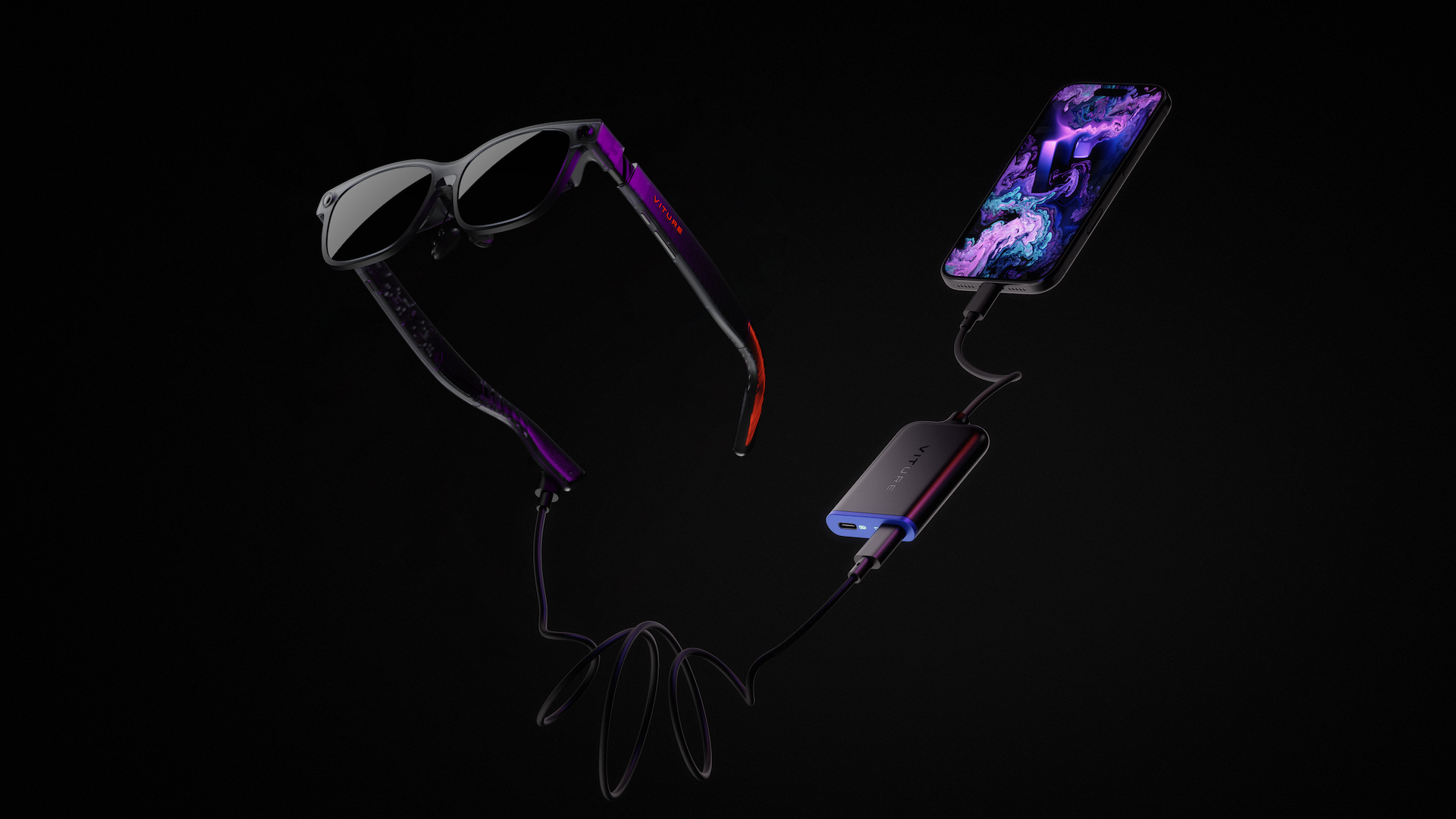
Advanced SpaceWalker Experience on iOS
Unlock the complete SpaceWalker feature set on compatible USB-C iPhones (iPhone 15 and later):
- 3DoF Head-Tracking: Smooth, responsive head-tracking for a truly immersive spatial experience.
- Multi-screen: Open multiple screens simultaneously and navigate by moving your head.
- 1-Click 3D: Detects online 3D content and switches to 3D Mode the moment you hit play.
- Auto 3D Switching: SpaceWalker automatically activates 3D Mode for local Full SBS, Immersive 3D, and spatial videos on XR glasses.
- VR Video Support: Single-screen and 3D 360°/180° VR video playback.
Discover more at SpaceWalker for mobile
Experience with The Beast
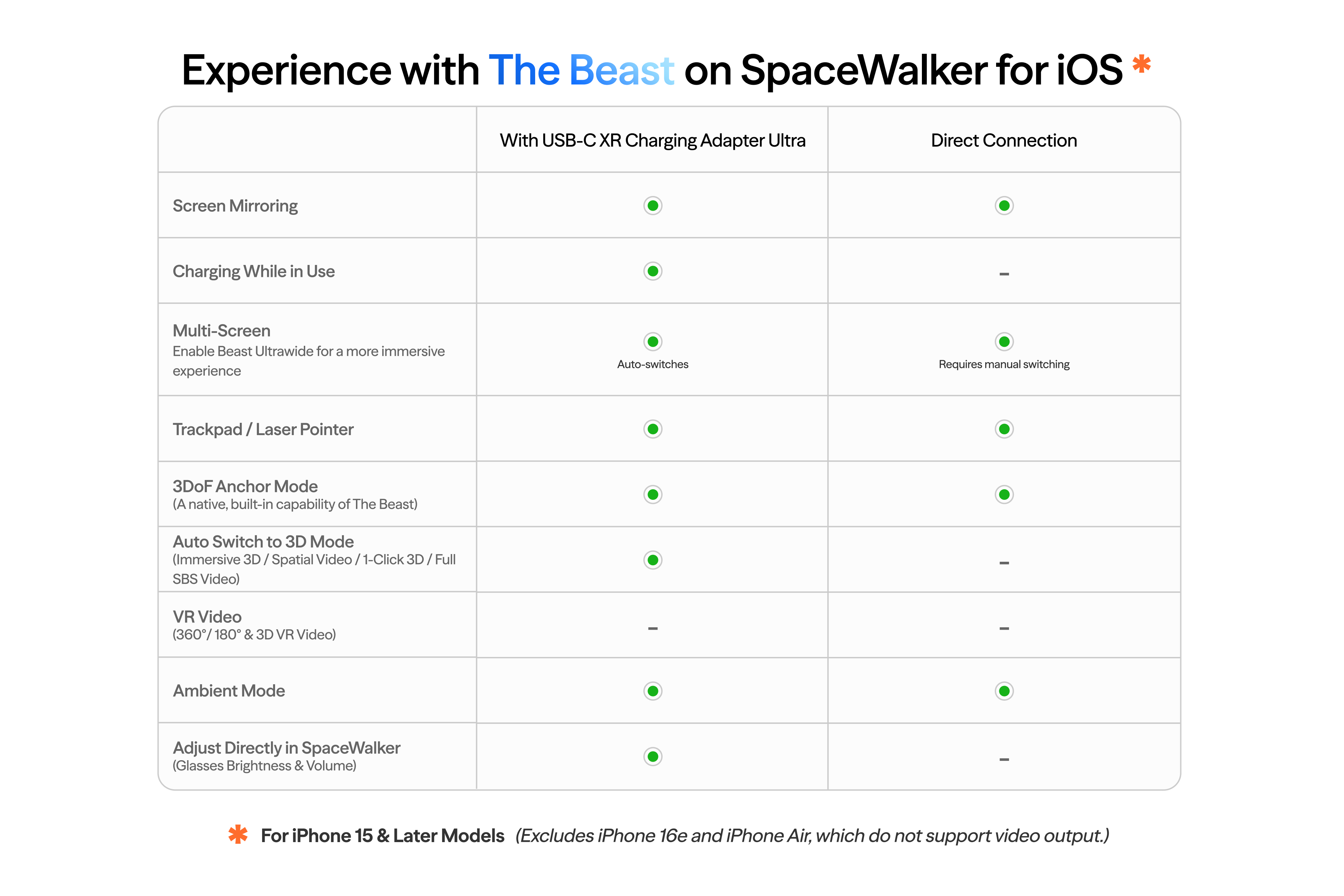
The Beast natively supports 3DoF functionality, allowing stable anchoring without an Adapter. However, connecting to Adapter Ultra can provide a smoother experience on SpaceWalker for iOS. See the table below for details:
Nintendo Switch 2 Ready and Every Handheld
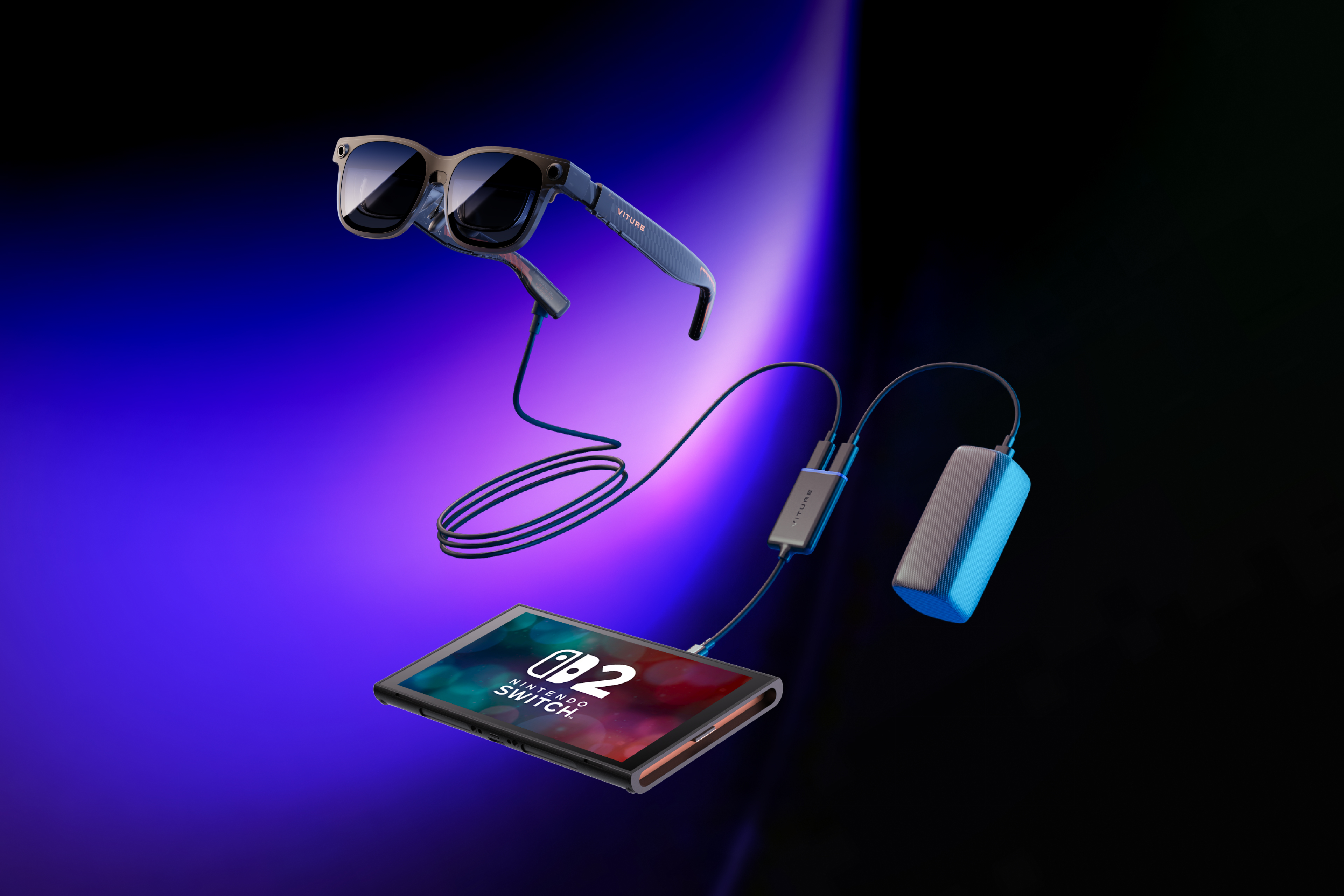
Switch, Switch 2, Steam Deck, ROG Ally. Plug in, go big, stay charged. Your couch just became a cinema.
For use with Switch 2, high frame rate mode requires a PD power bank with a total output of 45W or higher, as it powers both the Switch 2 (at least 39W / 15V 2.6A) and the glasses simultaneously.
Charge on Turbo. Play Without Limits
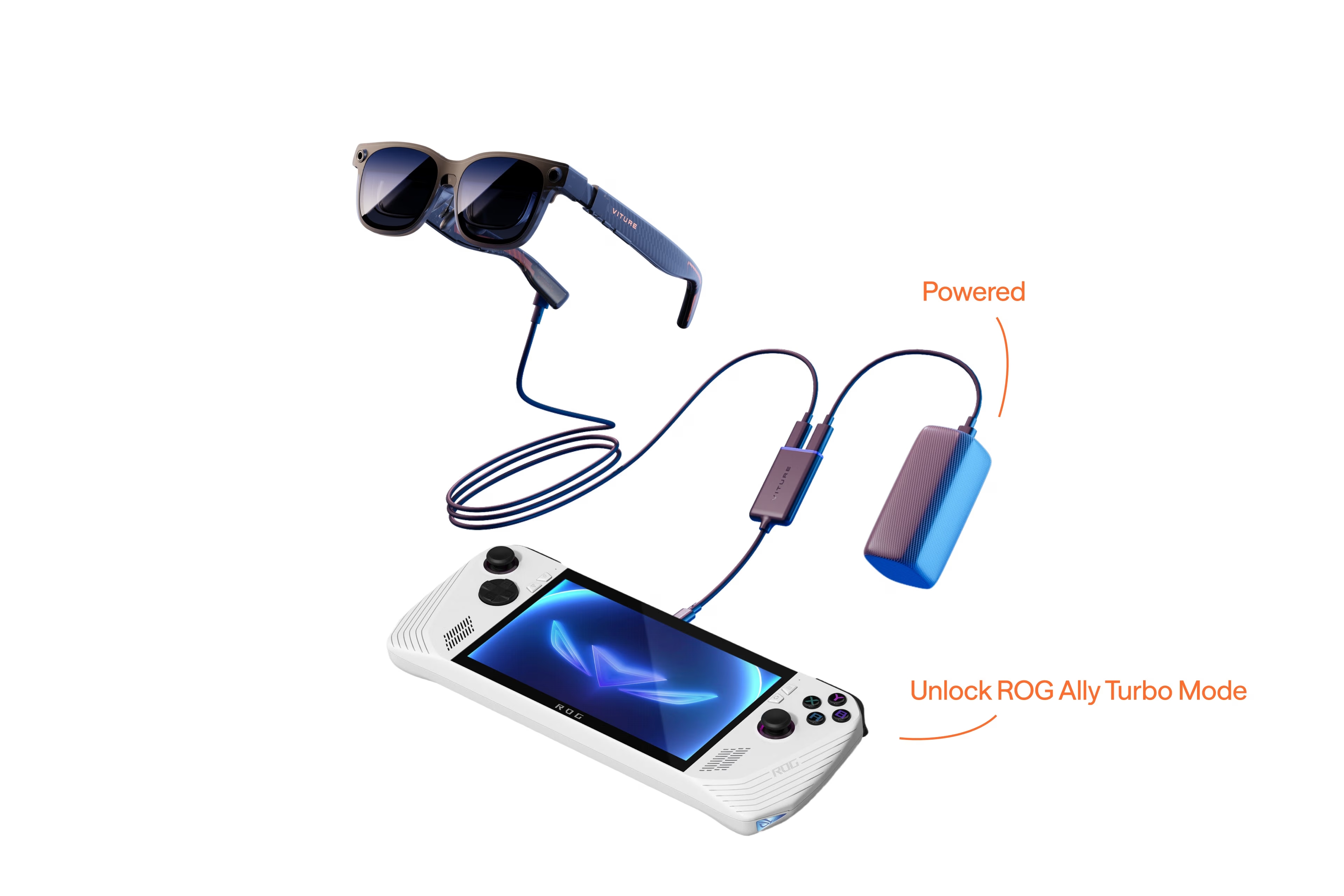
Up to 65W PD passthrough charging keeps every device powered through gaming, streaming, and XR marathons. ROG Ally Turbo Mode included, because why not go full turbo?
Recommended Articles
Compatibility
The USB-C XR Charging Adapter Ultra is compatible with all VITURE XR Glasses, include Luma Ultra and The Beast XR Glasses.
The USB-C XR Charging Adapter Ultra is compatible with all devices supporting DisplayPort over USB-C (also known as DisplayPort Alternative Mode or DP Alt Mode).
Find more compatible devices at: Compatibility - VITURE
Beyond charging while in use, advanced features are exclusively available via the SpaceWalker app on iPhone 15 and later. (iPhone 16e and iPhone Air are not compatible with VITURE XR Glasses.)
Please note: the USB-C XR Charging Adapter Ultra does not support wired data communication with the XR glasses. Video output and charging work as normal — you can still watch, play, and mirror your screen. However, features that require the app to "talk to" the glasses over the cable (such as adjusting glasses settings from the app) are unavailable on non-iPhone devices.
When connected to an Android phone and using the SpaceWalker app, screen mirroring and passthrough charging are supported. However, features that require communication with the XR glasses are unavailable, including PinMode, head tracking, automatic 3D mode switching, brightness and volume control, and more.
The same applies to Windows handhelds such as the ROG Ally and Lenovo Legion Go, automatic 3D mode switching via Immersive 3D is unavailable (you can still switch 3D mode manually on the glasses), and the SpaceWalker virtual screen layout features cannot be used.
Tutorial Video
Connect to Your Device
Steps
For the smoothest experience, follow this connection order:
- Connect the XR glasses and the charger to the adapter first.
- Then plug the adapter into your source device (handheld console, phone, tablet, etc.).
Notes
- Nintendo Switch / Switch 2: Be sure to follow the connection order above. Connecting in a different order may prevent video output and charging from working correctly.
- Smartphones: In high-brightness scenarios, power consumption increases significantly, especially in 3D Mode or UltraWide Mode. Due to the power output limitations of smartphones (Android / iPhone) over USB-C, the glasses may occasionally turn off or experience screen blackout. It is recommended to reduce brightness or connect a charger during use to ensure stable power supply.
Pair / Unpair
In SpaceWalker for iOS
In the SpaceWalker iOS app, you'll need to pair the adapter with your iOS device to access SpaceWalker iOS's advanced features.
Instructions for pairing and unpairing are as follows.
Pair
- Connect the USB-C connector to your iPhone 15 or later.
- Connect VITURE XR Glasses to the USB-C port marked with a glasses icon on the USB-C XR Charging Adapter.
- Open SpaceWalker on your phone, wait until the notification “Connected” pops up.
Please note that SpaceWalker can only pair with an adapter simultaneously. To pair with another adapter, you need to unplug and unpair the current adapter, then plug in another adapter.
Discover more at SpaceWalker for mobile
Unpair
- Tap the icon on the upper left of the phone’s screen to enter the on-screen menu.
- Tap “Forget” on “My Adapter” to unpair the current adapter.
To pair with the adapter again, simply connect the adapter and the XR Glasses to your iPhone.
If SpaceWalker does not find your adapter in use, try disconnecting and re-connect the adapter. If it still does not work, check “My Adapter” in SpaceWalker and tap “Forget”, then re-connect the adapter.
In SpaceWalker for Android
You can update the Adapter Ultra firmware via the SpaceWalker Android app. A one-time scan and pairing is required during the update process. For details, see Update Your Adapter Ultra
Please note that when using the adapter with SpaceWalker Android, only screen mirroring and simultaneous charging are supported. Advanced features such as glasses control and PinMode are not supported.
Recommended Articles
Update Your Adapter Ultra
You can update your Ultra Adapter using either the SpaceWalker mobile app.
Download the latest version of the app here.
The update steps are as follows:
Updating via the SpaceWalker iOS App
- Connect the USB-C XR Charging Adapter and XR Glasses to your iPhone, then open SpaceWalker.
- Once connected, the app will automatically detect the firmware version of your adapter. If an update is available, an update prompt will appear. Please note: during the update, disconnect the XR Glasses from the adapter and update the adapter only.
- Tap Confirm to start the upgrade. The screen will display the update progress. The entire process takes approximately 1–2 minutes.Keep the connection stable and leave the app open on the upgrade page.
- After the upgrade is complete, follow the on-screen instructions and unplug the adapter to finish the firmware update.
Updating via the SpaceWalker Android App
Coming soon
- Connect the adapter to your phone.
- Open the SpaceWalker app, go to Settings, and tap Update Ultra Adapter.
- Grant Bluetooth permission. The app will request access to Bluetooth — if you haven't authorized it before, please allow access when prompted.
- Scan and connect. The app will automatically scan for and connect to your Ultra Adapter. Once connected, the adapter's serial number will be displayed on the page. If an update is available, an Update button will appear below it.
- Start the update. Tap Confirm to begin. The screen will display the update progress. The entire process takes approximately 1–2 minutes — keep the connection stable and leave the app open on the update page.
- Finish. When the update is complete, follow the on-screen instructions and unplug the adapter to finalize the firmware update.
Tech Specs
| Item | Specification |
|---|---|
| Color | Black |
| Dimensions | 191 × 43× 11 (mm) |
| Weight | 31.3 g |
| Bluetooth | Bluetooth 5.4 (BLE 1/2 Mbps Rates) |
| Connector | USB-C |
| USB-C1 Output (Charging) | 59W (5V1.8A,9V-2.33A,12V-2.5A,15V-2.6A,20V-2.95A) |
| USB-C2 Output (XR Glasses) | 5V-1.2A, Supports DP, HDCP 1.3/2.3 |
| USB-C2 Video Output | USB2.0 Host, DP1.4, 4K@60Hz |
| USB-C3 Input (Charging) | Max 65W (5V-3A,9V-3A,12V-3A,15V-3A,20V-3.25A) |
| Data Transfer Rate | USB2.0 Host, DP1.4, 4K@60Hz |
Adapter Feature Comparison
VITURE offers a range of adapter products. To understand the capabilities of your specific adapter, please refer to this table below.
| USB-C XR Charging Adapter Ultra | USB-C XR Charging Adapter | HDMI XR Adapter | USB-C to Glasses and Charging Adapter Pro | XR Glasses | |
|---|---|---|---|---|---|
| Supported XR Glasses | Pro 2, The Beast, Luma Series, Pro & One Series | Luma Series (excluding Luma Ultra), Pro & One Series | Luma Series, Pro & One Series | Pro 2, The Beast, Luma Series, Pro & One Series | N/A |
| Screen mirroring[1] | All devices with DisplayPort over USB-C. | All devices with DisplayPort over USB-C. | All HDMI-compatible devices. | All devices with DisplayPort over USB-C. | All devices with DisplayPort over USB-C. |
| Game Handheld (Screen mirroring) | Switch 2, Switch, Steam Deck, ROG Ally, Legion Go | Switch, Steam Deck, ROG Ally, Legion Go | PS5, Xbox Series X, Xbox Series S | Switch, Steam Deck, ROG Ally, Legion Go | Steam Deck, ROG Ally, Legion Go |
| SpaceWalker for iOS Advanced Features[2] | - iPhone with USB-C - iPad with USB-C - etc. |
- iPhone with USB-C - iPad with USB-C - etc. |
- iPhone 14 and earlier models (requires Apple's Lightning AV Digital Adapter) | Not supported | Not supported |
| Charge while playing | ✓ | ✓ | ✓ | ✓ | × |
SpaceWalker Feature Comparison
| USB-C iPhone Ultra Pack (XR Glasses & USB-C XR Charging Adapter Ultra) |
USB-C iPhone Pack (XR Glasses & USB-C XR Charging Adapter) |
Lightning iPhone Pack (XR Glasses & HDMI XR Adapter) |
XR Glasses & USB-C to Glasses and Charging Adapter | XR Glasses | |
|---|---|---|---|---|---|
| Immersive 3D | ✓ | ✓ | × | ✓ | ✓ |
| Multi-screen Functionality | ✓ Head tracking Trackpad |
✓ Head tracking Trackpad |
✓ Head tracking Trackpad |
✓ Trackpad |
✓ Trackpad |
| Spatial Video | ✓ | ✓ | × | ✓ | ✓ |
| 360°/180° VR Video | ✓[3] | ✓ | ✓ | × | × |
| 3D VR Video[4] | ✓[3] | ✓ | × | × | × |
| 1-Click 3D[5] | ✓ | ✓ | × | × | × |
| Full SBS 3D Video[6] | ✓ | ✓ | × | ✓ | ✓ |
| Auto Switch to 3D Mode[7] | ✓ | ✓ | × | × | × |
| Pin Mode (3DoF)[8] | ✓ | ✓ | ✓ | × | × |
| Photo Gallery | ✓ Head motion Trackpad |
✓ Head motion Trackpad |
✓ Head motion Trackpad |
✓ Trackpad |
✓ Trackpad |
| Ambient Mode[9] | ✓ | ✓ | ✓ | ✓ | ✓ |
| Adjust the XR Glasses' brightness & volume[10] | ✓ | ✓ | ✓ | × | × |
- Screen mirroring may not function in specific iPhone apps due to their terms of service.
- iPhone 16e and iPhone Air are not compatible with the USB-C iPhone Pack.
- The Beast XR Glasses with the USB-C XR Charging Adapter do not support VR video playback, including 360°/180° VR videos and 3D VR videos.
- 3D VR videos now encompass both 3D 360 top/bottom and 3D 180 left/right video formats.
- 1-Click 3D is a feature within Video Detector. SpaceWalker detects videos on web pages and provides an 'Open in Player' button. Click the 'Enable 3D Mode' button, and transfer the online 3D video to SpaceWalker's internal player for playback.
- Full SBS (side-by-side) 3D video offers a resolution of 3840×1080.
- SpaceWalker detects 3D content (including local Full SBS 3D videos, Immersive 3D, and Spatial Videos) and automatically switches the XR Glasses to 3D Mode.
- Pin Mode is available in full screen on SpaceWalker when using the HDMI XR Adapter, USB-C XR Charging Adapter or USB-C XR Charging AdapterUltra.
- Ambient Mode is available in full screen on SpaceWalker. Explore more at Ambient Mode.
- To adjust XR Glasses' brightness and volume, ensure your XR Glasses are updated to the latest firmware version. Visit this page for XR Glasses updates.
Please note that SpaceWalker is not designed to be an app launcher. All pages, apart from the mini apps, are web pages. As a result, running apps installed on your phone within SpaceWalker is not supported.
Report Vulnerabilities
Security Breach Response
VITURE attaches great importance to security issues, and we welcome security researchers to provide us with feedback on potential security issues to improve the security of our products and services.
Vulnerability Response and Disclosure Process
Recipient
Monitor and assign received vulnerabilities in a timely manner.
Verification
Conduct technical verification of the effectiveness of vulnerabilities, confirming their exploitability and potential impact.
Solution Development
Provide effective fix solutions or risk remediation measures.
Affected Scope Confirmation
Investigate and confirm the complete scope of affected products.
Disclosure of Vulnerabilities
Review and publish security recommendations for the vulnerability after confirming the completion of all vulnerability response processes.
Vulnerability Submission
You can report vulnerabilities via email. The following are the detailed reporting methods:
Mailbox: happycustomer@viture.us
The email should include at least the following information:
- Your organization and contact information
- Products and versions affected
- Description of the potential vulnerability
- Information about known exploits
- Disclosure plans
- Additional information, if any
Attention
Although we encourage investigation of potential security breaches, we cannot tolerate any activity that may interfere with legitimate users or may violate applicable computer abuse, cyber security and data protection regulations. Therefore, the following activities are prohibited:
- Modification or destruction of data
- Service disruption or degradation, such as DoS
- Disclosure of personal, proprietary or financial information
Response Time
Upon receipt of the vulnerability you have submitted, we will send you a notification via email within 72 hours to commence the vulnerability response, along with confirmation and feedback on the nature of the vulnerability. The subsequent progress of the vulnerability will also be continuously updated in the email.
Actual vulnerability response time may vary depending on the risk level and complexity of the vulnerability.
Vulnerability Disclosure Instructions
When an external party discovers or is concerned about a potential vulnerability, but we have not yet fully confirmed it, we will disclose basic information about the vulnerability and our investigation via email.
The vulnerability information shall be kept confidential until VITURE releases the formal security advisory to the public.
When the vulnerability has been confirmed to be fixed, new firmware will be released, and a firmware update change log will be published, containing a description of the vulnerabilities that have been solved.
Product Support Policy
We strive to provide continuous security updates for our products. The security updates generally include the latest patches, vulnerability fixes, and other security improvements. We will maintain security updates for at least half a year from the launch date of a product. However, the security update situation may vary by product, so please pay attention to our announcements.
This page is reviewed on a regular basis. Any change to this policy will apply only to products released after the date of the change.